Building an Engineer Robot on Unitree
Overview
There is no ready-made engineer robot — we build it ourselves. The Unitree platform handles movement, while the AI agent with three-layer memory takes care of coding, SSH, and deployment.
Conceptual breakdown (why it's needed and how it works) — see the article "Engineer Robot: Assistant Dog". Here — a step-by-step plan.
1. Platform Selection
| Version | Purpose | Onboard PC |
|---|---|---|
| Go2 Air | Basic following, experiments | Limited |
| Go2 Pro | Companion with enhanced sensors | Medium |
| Go2 EDU | Full development | NVIDIA Jetson Orin |
For an engineering assistant, choose EDU: it's the only one that provides access to the onboard computer where you can run your own code.
2. Onboard Stack
On Jetson Orin, install ROS2 and Unitree SDK:
sudo apt install ros-humble-ros-base
pip install unitree_sdk2_python
Leave the robotics layers (navigation, following) to the Unitree controller. Write your own code on top of the SDK, not instead of it.
3. AI Agent and Tools
The agent works as a task server. Voice or chat → Function Calling → tools:
- SSH — connection to staging/prod;
- CLI — git, docker, pytest;
- CI/CD — trigger GitHub Actions, read logs.
tools = [
    ssh_exec(host="192.168.1.50"),
    run_cli("git pull && docker compose up -d"),
    github_actions(trigger="deploy-staging"),
]
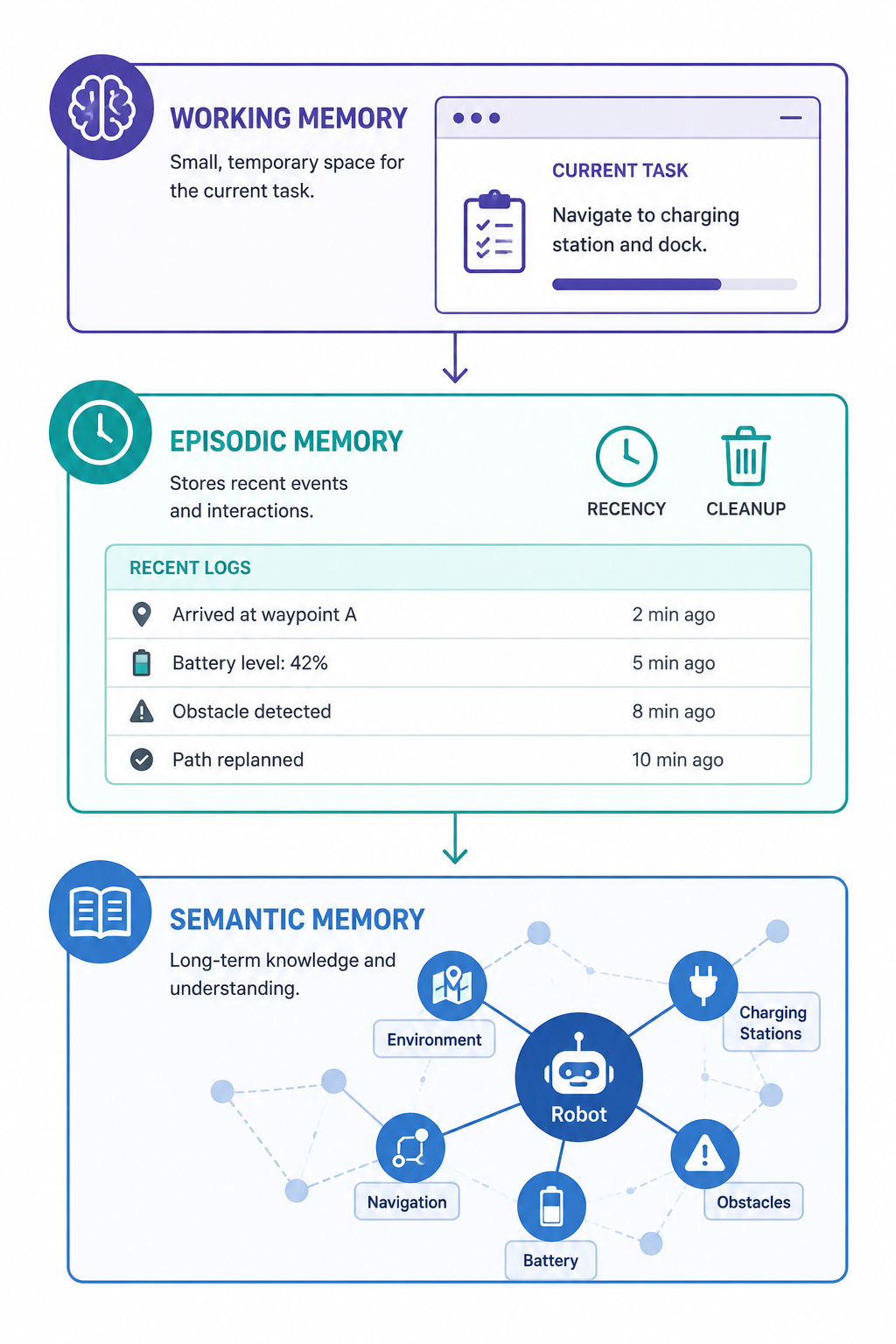
4. Memory: Three Layers
Long-term (semantic)
Stores 'permanent' facts: server IPs, deployment rules, owner preferences. Implemented via GraphRAG or vector database, which the agent queries via MCP server.
Short-term (episodic)
Logs of command execution with auto-clearing:
- summarization: 1000 lines of command output → verdict 'Exit code 0, deployment successful';
- TTL: raw logs live for 24 hours, then deleted;
- compression on completion: 20 dialogue steps → summary in 2 sentences.
def consolidate(episode):
    summary = llm.summarize(episode.steps)   # compress dialogue
    memory.save(summary)                      # to long-term memory
    store.delete(episode.raw_logs)            # raw — delete
Working (context window)
Only system instruction + extracted fact + current request + brief summary of previous task enter the model. No megabytes of logs.
5. Connection to Work PC
The robot connects to your network via Wi-Fi or Tailscale. When it's nearby, it works as a physical interface (microphone, speaker, display) for running scripts on the work station.
Run vector database for memory in Docker:
docker run -d -p 8000:8000 chromadb/chroma
What's Next
- Set up the robot and check following.
- Run the agent on Jetson with one tool (
ssh_exec). - Connect MCP memory.
- Add voice: STT → agent → TTS.